


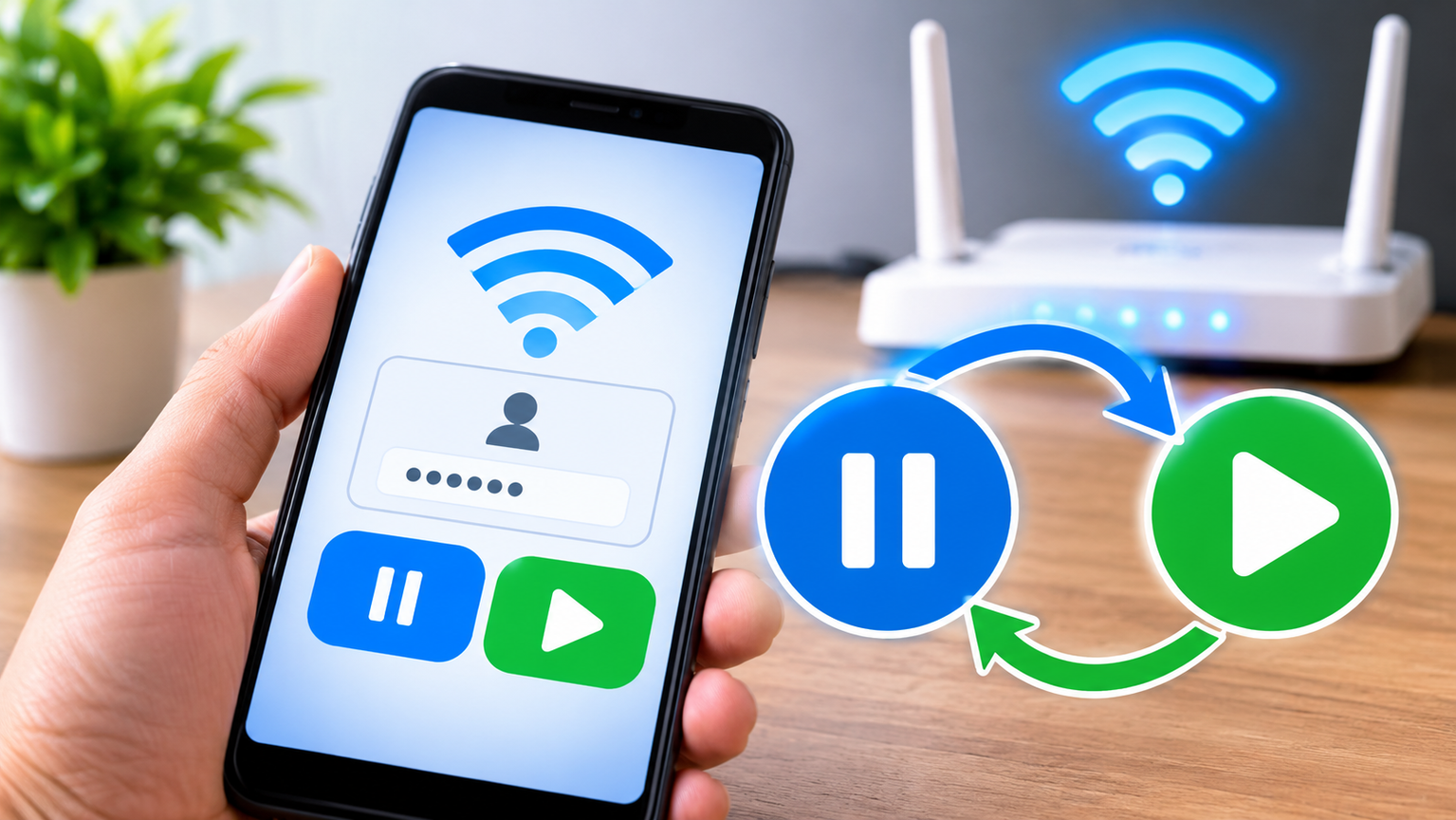
The 10.0.0.1 Piso WiFi portal pause feature allows users to temporarily stop an active prepaid internet session. Instead of losing their remaining browsing time when they leave a WiFi hotspot, users can select the Pause Time option, if the machine supports it, and return later to continue their session.
Piso WiFi systems commonly operate through coin-operated or voucher-based internet vending machines. Customers pay for a specific amount of internet access, connect their phones or computers to the wireless network, and manage their sessions through a captive portal. The address http://10.0.0.1 is commonly used to access this local portal.
However, not every Piso WiFi machine has identical settings. The available pause options depend on the software, firmware, and configuration selected by the machine operator. Understanding how the portal works, how to pause a session, and how to resume it can help users avoid unnecessary loss of prepaid time.
This guide explains the portal, its pause and resume functionality, access instructions, common problems, security considerations, and frequently asked questions.
What Is 10.0.0.1 Piso WiFi Portal Pause?
The 10.0.0.1 Piso WiFi portal pause is a session management feature that temporarily suspends an active prepaid WiFi connection. It is designed to preserve the unused portion of a paid internet session while the user is away.
For example, imagine that someone purchases 60 minutes of internet access but needs to leave after using 20 minutes. If the hotspot supports pause functionality, the user can pause the session and potentially save the remaining 40 minutes for later.
The pause feature generally performs two functions:
- Stops the session countdown while the session is paused.
- Temporarily suspends internet access until the user resumes the session.
When the user returns, they can open the same portal and select Resume Time or a similarly named option.
It is important to understand that this functionality is controlled by the Piso WiFi vending software. The IP address itself does not provide a pause feature.
What Is 10.0.0.1 and Why Is It Used for Piso WiFi?
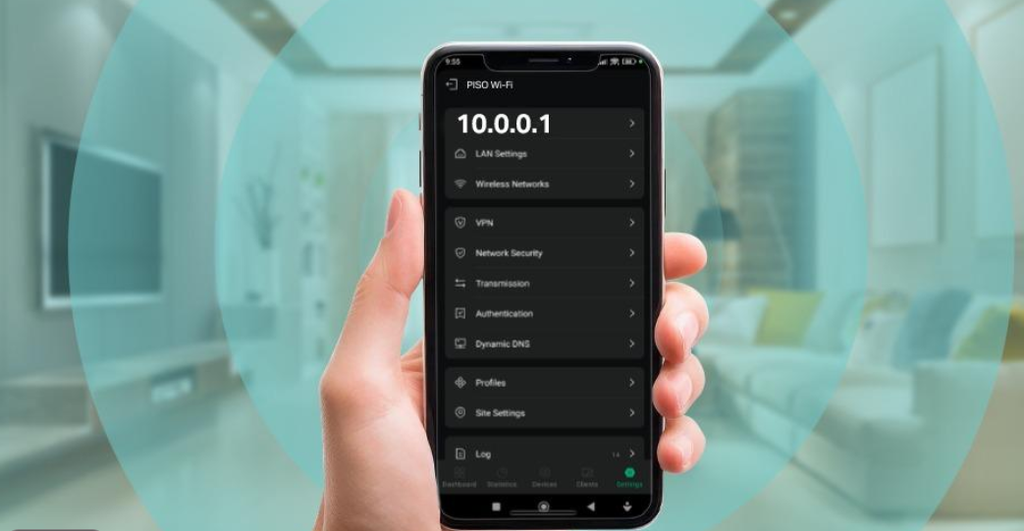
The address 10.0.0.1 is an IPv4 private IP address. Network devices use private IP addresses to communicate within local networks. Router manufacturers and network administrators can configure these addresses as gateways or management addresses.
In a Piso WiFi installation, the address may serve as the gateway to the customer portal or router management interface.
It is part of the private IP range reserved for internal networks under RFC 1918. Therefore, it cannot be accessed as a normal public website from an unrelated internet connection.
Here is what you should know:
10.0.0.1is a private IPv4 address.- It may be configured as a local network gateway.
- Its availability depends on the router configuration.
- You generally need to connect to the relevant WiFi network before opening it.
- It is not a universal address for every router or Piso WiFi installation.
For example, a router may instead use 192.168.1.1 or 192.168.0.1. Always use the address configured by the network operator.
How to Access the 10.0.0.1 Piso WiFi Portal
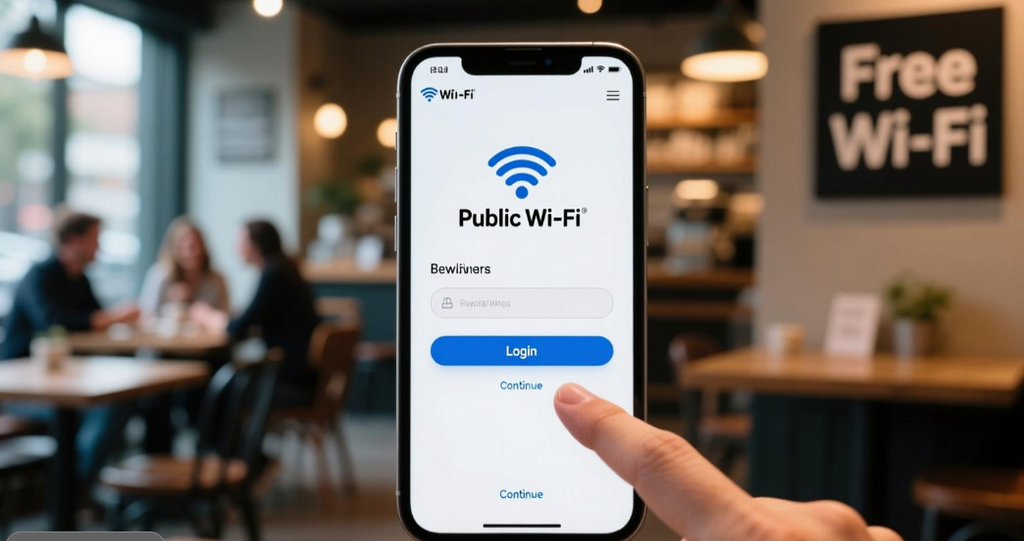
You can access the Piso WiFi portal using a smartphone, tablet, laptop, or desktop computer. The important requirement is that your device must be connected to the correct Piso WiFi network.
Follow these steps:
- Open the WiFi settings on your device.
- Find the Piso WiFi network and connect to it.
- Open Google Chrome, Safari, Firefox, or another browser.
- Enter
http://10.0.0.1directly into the browser’s address bar. - Press Enter or Go.
- Wait for the local Piso WiFi portal to load.
- Follow the instructions displayed on the screen.
If the portal opens automatically after connecting, you can use that page instead.
Important: Enter the address with http:// if the browser automatically tries to use HTTPS. Do not search for 10.0.0.1 on Google. It is a local network address, not a search term or an ordinary internet website.
If the page does not open, check that you are still connected to the correct hotspot.
How to Use the 10.0.0.1 Piso WiFi Pause Feature
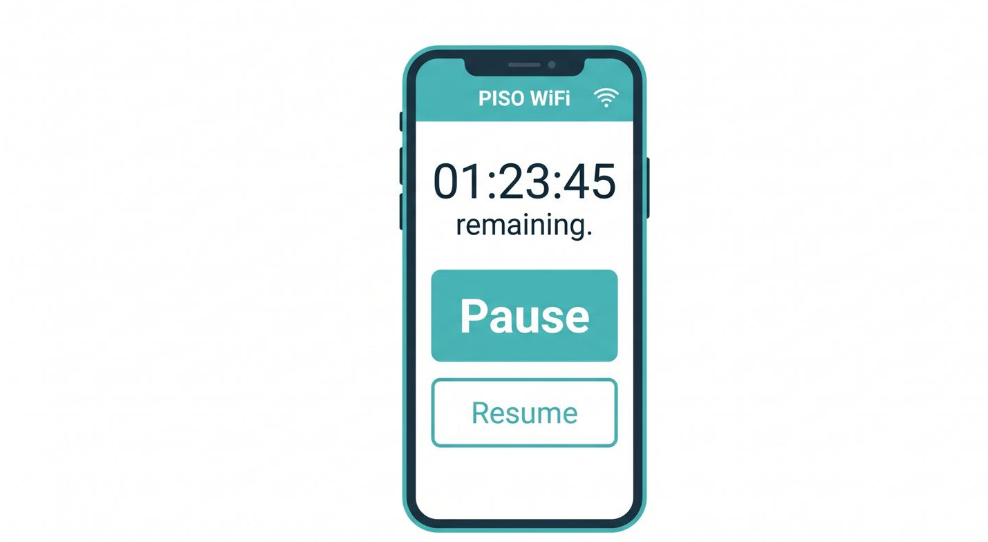
The pause function is useful when you need to stop browsing temporarily without using all your purchased internet time.
The exact button names and portal layout can vary, but the general process is straightforward.
Step 1: Connect to the Piso WiFi Network
Open your device’s wireless settings and connect to the hotspot. Make sure you have joined the network that provides the prepaid internet service.
Step 2: Open the Local Portal
Launch your browser and enter:
http://10.0.0.1
Wait for the login or session management page to appear.
Step 3: Start Your Internet Session
Follow the machine’s payment instructions. Depending on the installation, payment may involve coins, vouchers, or supported digital payment methods.
Once payment is accepted, the system should activate your internet session.
Step 4: Find the Pause Time Option
Look for a button labeled:
- Pause Time
- Pause Session
- Pause Internet
Not every installation uses these exact labels. Some portals may display a different interface.
Step 5: Pause Your Session
Select the available pause option and wait for the portal to confirm that the session has been paused. Check the remaining time if the portal displays a session countdown.
Your internet access may stop while the session is paused.
Step 6: Resume Your Internet Connection
When you want to browse again, reconnect to the same Piso WiFi network if necessary. Open http://10.0.0.1 and look for Resume Time, Resume Session, or Continue.
Select the available option to reactivate your remaining prepaid time.
Practical tip: Use the same device whenever possible. Some installations associate a session with a device identifier or an active session record, so switching devices can make it difficult to recover the original session.
How Does Piso WiFi Pause Time Work?
The pause function operates through the session management system installed on the vending machine.
When a customer purchases internet access, the software creates a session containing information needed to manage the connection. This can include the remaining session time, device identification, and session status.
The general process works as follows:
1. Payment
The customer purchases prepaid internet access.
2. Active session
The system starts the internet countdown.
3. Paused session
The system suspends the connection and pauses the timer, if supported.
4. Resumed session
The system restores access and continues the remaining time.
The pause period may be limited by the operator. Some systems also restrict how many times a customer can pause a session. Therefore, users should not assume that their remaining time will stay available indefinitely.
Can You Use Piso WiFi Pause Time in the USA?
Yes, you can access a Piso WiFi system in the United States if you are physically connected to a compatible network that uses this portal address. However, Piso WiFi is primarily associated with Philippine prepaid WiFi vending services.
The location of the user does not change how a private IP address works. What matters is the local network configuration.
For example:
- A person in the Philippines may access a local Piso WiFi vending portal.
- A person in the USA may access a compatible Piso WiFi installation if one is available.
- A person using ordinary home WiFi cannot automatically access another network’s Piso WiFi portal.
- Entering 10.0.0.1 while connected to mobile data will generally not open the local vending portal.
If you are in the United States and researching this feature, remember that it is not a standard feature of American public WiFi networks. It depends on the specific prepaid hotspot system.
What Is the Difference Between Piso WiFi User Portal and Admin Portal?
Although both interfaces may use the same local IP address, they serve different purposes.
| Feature | User portal | Admin portal |
|---|---|---|
| Main purpose | Customer access | Network management |
| Payment | May support session payment | Configures payment systems |
| Pause time | Pause an active session | Enable or restrict pause settings |
| Resume | Restore an eligible session | Manage session rules |
| Network settings | Usually unavailable | Available to authorized administrators |
| User management | Limited | Depends on software |
The user portal is designed for customers who purchase internet access. The admin portal is intended for the machine owner or authorized network administrator.
Some installations provide a separate administrative path, such as http://10.0.0.1/admin. However, the actual address and menu structure depend on the installed software.
How Can an Administrator Enable Pause Time?
Administrators should first identify which Piso WiFi software their machine uses. Different platforms can organize their controls differently.
A general configuration process involves:
- Open the authorized administrator interface.
- Sign in using the administrator’s own credentials.
- Find the portal, session, or user access settings.
- Look for Pause Time or Pause/Resume controls.
- Enable the feature if the installed software supports it.
- Review pause limits and session expiry settings.
- Save the configuration and test it with a customer account.
Platforms such as LPB Piso WiFi and AdoPiSoft can have different settings and session management options. Do not assume that instructions for one platform apply to another.
Never use credentials published on an unrelated website to access someone else’s equipment.
Common Problems With 10.0.0.1 Piso WiFi Portal Pause
Sometimes users cannot access the portal, find the pause button, or restore their internet connection. The following table covers common problems and practical solutions.
| Problem | Possible reason | Recommended solution |
|---|---|---|
| 10.0.0.1 is not opening | Not connected to Piso WiFi | Connect to the correct network |
| Portal redirects to Google | Address entered in search field | Use the browser address bar |
| Pause button is missing | Feature disabled or unsupported | Contact the machine operator |
| Pause button is not responding | Session or portal issue | Refresh the portal and retry |
| Remaining time is not saved | Pause restrictions or session expiry | Ask the operator to check session status |
| Resume button is missing | Session expired or device changed | Reconnect using the original device |
| Portal shows a blank page | Browser or network problem | Try another browser or private window |
| Internet does not work after resuming | Connection has not been restored | Reconnect to the hotspot and retry |
10.0.0.1 Is Not Opening
If the portal does not load, first confirm that your phone or computer is connected to the Piso WiFi network.
Next, enter the complete address:
http://10.0.0.1
You can also temporarily disable mobile data on your smartphone. Some devices automatically switch to cellular internet when a WiFi network does not provide internet access.
Pause Time Button Is Not Showing
The pause feature is not automatically available on every Piso WiFi installation. The machine owner may have disabled it, or the installed software may not support the option.
Refresh the page or open it in a private browser window. If the button is still missing, contact the operator.
Changing your phone settings will not activate a feature that the administrator has disabled.
Resume Time Is Not Working
If you previously paused your session but cannot resume it, check the following:
- Make sure you are connected to the original Piso WiFi network.
- Try using the same smartphone or computer.
- Reopen the portal manually.
- Check whether the allowed pause period has expired.
- Contact the operator if your session information is no longer available.
Do not immediately purchase another session before checking whether your previous session can be recovered.
Internet Stops Working After Resuming
Sometimes the portal may show an active session even though internet access has not returned. This can happen because of a temporary network interruption, a device connection problem, or an issue with the vending system.
Disconnect and reconnect to the WiFi network. If the problem continues, ask the administrator to inspect the session and network connection.
Does Piso WiFi Pause Time Expire?
Yes, a particular installation may have a pause expiration policy.
The administrator can configure rules that determine how long a paused session remains available. Depending on the software, restrictions may include:
- Maximum pause duration.
- Maximum number of pause attempts.
- Automatic expiration of inactive sessions.
- Minimum remaining time required to pause.
- Restrictions on restoring expired sessions.
These settings are not universal. There is no single guaranteed expiration period for every Piso WiFi machine.
For this reason, users should ask the hotspot operator about pause limits before relying on the feature for a long break.
Is 10.0.0.1 Piso WiFi Portal Safe?
Accessing a local Piso WiFi portal is generally a normal part of using a prepaid hotspot. However, users should take basic precautions when connecting to public or shared wireless networks.
Here are some important security practices:
Check the network name: Confirm that you are connected to the intended hotspot rather than an unfamiliar network with a similar name.
Use the correct address: Enter the local address provided by the operator. Avoid suspicious websites that imitate a router login page.
Avoid sensitive transactions: Public WiFi networks may expose users to security risks. Avoid entering banking passwords or sensitive information over an untrusted connection.
Protect your device: Keep your operating system, browser, and security software updated.
Do not share administrator credentials: Customer access does not require permission to change router or vending machine settings.
Also, remember that 10.0.0.1 is a private IP address, not proof that a website or network is trustworthy. Its security depends on the router, portal software, network configuration, and administrator practices.
10.0.0.1 Piso WiFi Portal Pause vs. Normal WiFi Disconnection
Many users confuse pausing an internet session with simply disconnecting their devices from WiFi. These actions are different.
| Pause Time | Normal WiFi disconnection |
|---|---|
| Uses a portal control | Uses device WiFi settings |
| May stop the prepaid timer | Does not necessarily stop the timer |
| Can preserve remaining paid time | May continue consuming paid time |
| Requires supported session management | Does not require a special portal feature |
| Can require a resume action | Usually requires reconnecting |
For example, switching off WiFi on your phone does not automatically pause a prepaid Piso WiFi session. The vending software may continue counting down even when your device is disconnected.
If you want to preserve your purchased time, use the actual Pause Time option whenever it is available.
Frequently Asked Questions
What is 10.0.0.1 Piso WiFi portal pause?
It is a session management feature that allows customers to temporarily stop an active prepaid internet session. When supported and enabled, the system pauses the countdown and allows customers to resume their remaining time later.
How do I pause my Piso WiFi internet connection?
Connect to the Piso WiFi network, open http://10.0.0.1, and find the Pause Time or Pause Session option. Select it and wait for confirmation that the session has been paused.
How do I resume my Piso WiFi session?
Reconnect to the original network, open the local portal, and select Resume Time or Resume Session. If the option is unavailable, check whether your session has expired or contact the machine operator.
Why is the 10.0.0.1 portal not opening?
Your device may not be connected to the correct WiFi network. Other possible causes include an incorrect gateway address, browser problems, mobile data switching, or router configuration issues.
Can I pause Piso WiFi without using the portal?
Generally, you need to use the pause control provided by the vending system. Simply turning off WiFi, closing your browser, or putting your phone into airplane mode does not guarantee that your prepaid timer will stop.
Can I use the pause feature multiple times?
That depends on the software and administrator settings. Some systems may allow multiple pause attempts, while others restrict the number of pauses or require a minimum remaining session time.
Does Piso WiFi pause time save my remaining minutes?
When the feature works as intended, it preserves the remaining prepaid session time while the session is paused. However, expiration rules and software configuration may affect how long that time remains available.
Can I open 10.0.0.1 without connecting to Piso WiFi?
Usually not. The address belongs to a private network, so your device generally needs to be connected to the network that uses that gateway address.
Is 10.0.0.1 the same as 192.168.1.1?
No. Both are private IPv4 addresses, but they identify different addresses within private networks. A router can use either address depending on its configuration.
Does every Piso WiFi machine support Pause Time?
No. Availability depends on the installed vending software, firmware version, and administrator configuration. Some machines may not offer the feature.
Can I access the Piso WiFi portal on an iPhone or Android phone?
Yes. You can generally access a compatible local portal through Safari, Chrome, or another browser. Connect to the relevant WiFi network first and enter the local address manually if automatic redirection does not work.
Conclusion
The 10.0.0.1 Piso WiFi portal pause feature provides a convenient way to manage prepaid internet sessions. It allows customers to temporarily stop their session countdown and return later to use their remaining internet time, provided the vending system supports and enables this option.
To use it, connect to the correct Piso WiFi network, open the local portal, and select Pause Time. When you are ready to browse again, return to the portal and select Resume Time.
The most important thing to remember is that 10.0.0.1 is a private network address, not a universal public website. Portal access, pause availability, session limits, and administrator controls depend on the individual installation. Understanding these differences makes it easier to use the service and troubleshoot common problems.