


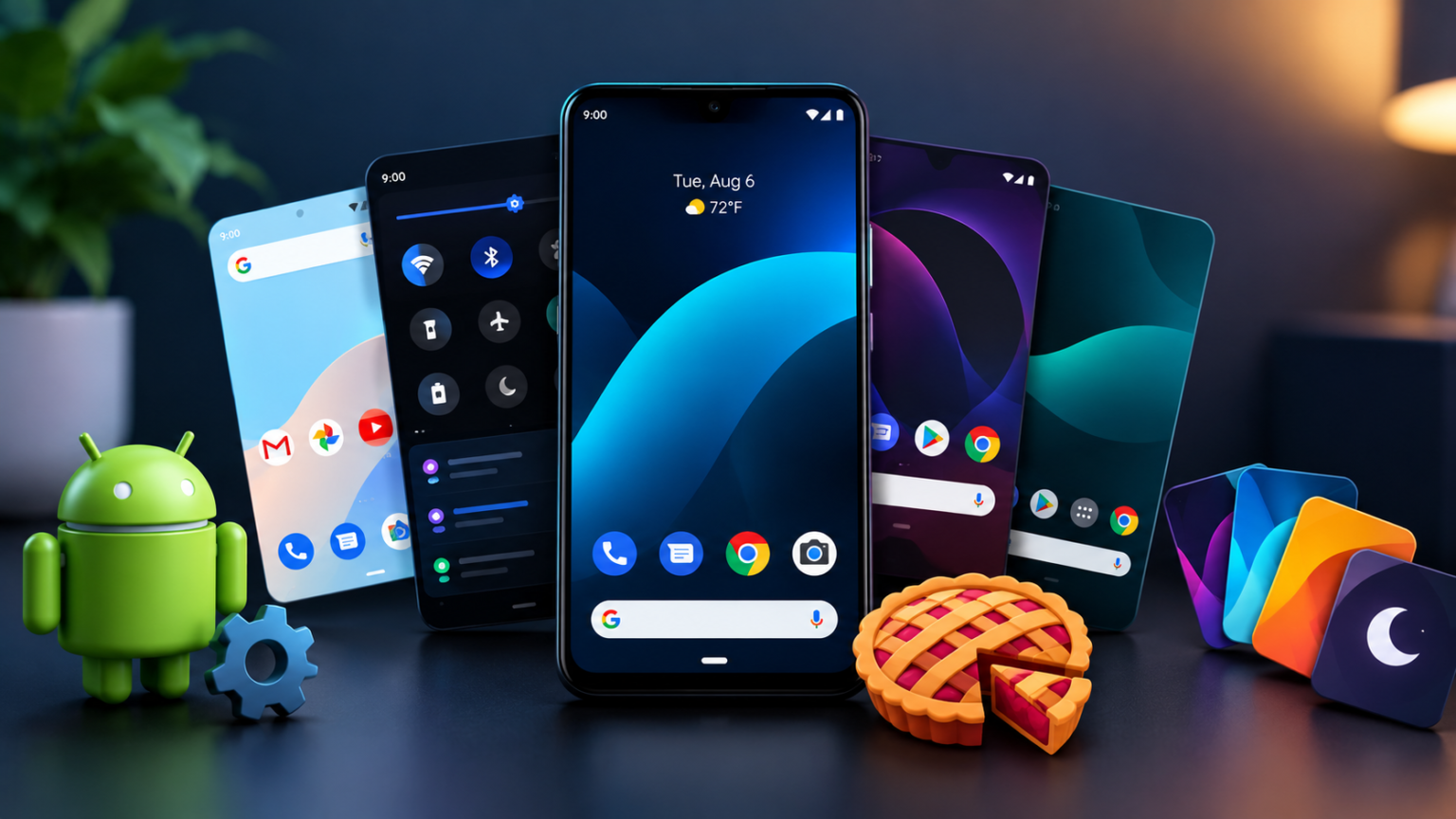
Themes Android Pie options depend on your phone brand, Android build, and the kind of changes you want to make. You may be able to change wallpapers and icons, install a launcher, use your manufacturer’s theme store, or apply a compatible system theme. Since Android 9 Pie is an older release, some apps have stopped receiving updates and some advanced themes only work with specific custom ROMs. This guide explains the practical options, where to check compatibility, and how to download themes more safely.
What Can an Android Pie Theme Change?
A theme can change the look of your device, but the amount of control varies. Wallpapers change the background; icon packs change supported app icons; launchers change the home screen and app drawer; and system themes may change status bars, quick settings, menus, or supported apps. A theme advertised for Android Pie may not support every phone running Android 9 because manufacturers customize Android in different ways.
Themes Android Pie Download: Best Ways to Customize Your Phone
1. Use the Phone Manufacturer’s Theme Store
If your phone has a built-in Themes app, start there. The store is designed for the manufacturer’s interface and may provide themes, wallpapers, fonts, and icons. Search within the store, preview the design, read its details, and apply it through the app’s own controls. Availability differs by manufacturer and model.
2. Install a Launcher or Icon Pack
A launcher is often the easiest option if you mainly want a different home screen, app drawer, icon layout, or gesture controls. Download it from a trusted app store and check that it supports your Android version. Icon packs may require a compatible launcher; they do not necessarily change system menus or notification panels.
3. Check Advanced Substratum Themes Only If Compatible
Some themes created for Android 9 use Substratum and require a supported ROM or theming environment. They are not universal one-tap themes. Before installing, read the developer’s requirements and supported-device notes. Do not root your phone or flash a custom ROM solely to apply a theme unless you understand the risks and have a complete backup.
Android Pie Themes Worth Checking
The following examples have documentation that mentions Android 9 or Pie support. These are research examples, not a guarantee that each one is currently maintained or will work on your exact device. Open the developer or store page and verify its latest compatibility notes before downloading.
| Pixel Theme – Substratum | Pixel-inspired interface styling and color options | Listing names Android 9 Pie support for compatible AOSP devices; Substratum is required. Not universal across all manufacturer skins. | https://play.google.com/store/apps/details?id=it.folgore95.pixel |
| DarkCroc Theme | Dark AOSP-style colors and variants | Targets Android 9+ and requires a working Substratum platform on the device. | https://riqq.gitlab.io/fdroid-website/en/packages/de.spiritcroc.darkcroc.substratum/ |
| Alined Substratum Theme | Light styling with selected dark overlays | Developer listing mentions Android 9 ROM support and OMS requirements; some devices/ROMs may be unsupported. | https://play.google.com/store/apps/details?id=com.b16h22.alined |
| Built-in theme store | Themes, wallpapers, icons, and sometimes fonts | Best checked on the device itself; features vary by phone brand and model. | Open the Themes app supplied with your phone |
Important: some advanced theme listings are old and may have limited support. Confirm current availability, pricing, Android requirements, and device compatibility before recommending a specific theme to readers.
Themes Android Pie Free Download: What Is Actually Free?
Free options may include wallpapers, icon packs, launchers, and selected themes. Other products may cost money or offer optional purchases, and some free apps contain ads. Check the listing before installing rather than assuming every theme is free. For the safest route, use the phone’s built-in store or a reputable app store where possible.
Themes Android Pie APK: Download Safely
An APK is an Android application package. Installing an APK from outside a trusted store can be riskier than installing from the official app store, particularly if the file has been modified or repackaged. Prefer a developer’s official page or a trusted open-source repository. Avoid pages with fake download buttons, unexpected redirects, or instructions to disable security protections.
- Check the app name, developer, version number, file source, and minimum Android version.
- Compare the package name and digital signature information when the developer provides them.
- Review requested permissions; a wallpaper app should not need unrelated access to messages or contacts.
- Do not install an APK if your phone reports a signature conflict, verification problem, or suspicious behavior.
- Remember that sideloaded apps may not update automatically, and an old APK may contain unpatched issues.
How to Install Themes on Android Pie
For a standard theme app, launcher, or icon pack, follow the app’s own instructions. Menu names vary by phone:
- Open the official app store or the theme store built into your phone.
- Search for a theme or launcher and read the compatibility notes.
- Install the app, open it, and follow its setup instructions.
- Apply the theme in the app or through the phone’s personalization settings.
- If icons do not change, check whether a compatible launcher is required.
- If the phone becomes unstable or the theme looks wrong, revert to the default theme and uninstall the app if necessary.
Themes for Android Tablet: What to Know
Themes for Android tablets should be checked for large-screen support. A phone-focused launcher may stretch icons or leave awkward empty space on a tablet. Preview screenshots, look for tablet-specific layouts, and confirm Android version requirements. Wallpapers and compatible icon packs are usually a lower-risk starting point than system-level modifications.
Can You Use a Dark Theme on Android 9 Pie?
Android 9 Pie included a Device Theme option on supported devices, but it did not provide the same broad system-wide dark theme introduced with Android 10. Depending on the phone, the setting may offer Light, Dark, or Automatic appearance and may affect only certain interface elements. Check Settings > Display for a Device theme or similar option; the exact path depends on the manufacturer.
Official Android reference: https://developer.android.com/develop/ui/views/theming/darktheme
Why a Theme May Not Work
- The theme requires a newer Android version.
- It was built for a different manufacturer’s software or a specific custom ROM.
- It requires Substratum or another theme engine that is not installed or supported.
- The APK is damaged, modified, or incompatible with the device.
- The developer no longer maintains the app.
If a theme does not work, return to the default appearance, restart the phone, and check the developer’s troubleshooting instructions. Avoid advanced modifications unless you understand how to restore the device if something goes wrong.
Frequently Asked Questions
Where can I download themes for Android Pie?
Start with your phone’s built-in theme store or a trusted app store. For advanced themes, use the developer’s official page and check the exact Android 9 and device requirements.
Are themes Android Pie free download options available?
Yes, some themes, launchers, wallpapers, and icon packs are free. Others may include ads, in-app purchases, or a purchase price, so check the listing first.
Can I install themes Android Pie APK files?
Android allows app installation from APK packages, but third-party files carry additional risk. Use trusted sources, verify compatibility, and do not bypass security warnings.
Will Android Pie themes work on every phone?
No. Manufacturer software, ROM support, required theme engines, and Android version can affect compatibility.
Can I download themes for an Android tablet?
Yes, if the theme or launcher supports the tablet’s Android version and screen layout. Check compatibility before installing.
Does Android Pie have a complete dark mode?
Android 9 offered a more limited device-theme option on supported devices. Android 10 introduced a broader system-wide dark theme.
What is the simplest way to change my Android Pie home screen?
Try a compatible launcher, wallpaper, or icon pack from a trusted app store before attempting advanced system themes.
Conclusion
The best way to customize an Android Pie phone is to choose a method that matches your device and comfort level. A built-in theme store, launcher, wallpaper, or icon pack is usually the easiest starting point. Advanced Substratum themes can change more of the interface, but they have specific requirements and may not work on stock firmware. Before any download, verify the source, version, permissions, and compatibility so you can personalize your phone without unnecessary risk.
Editorial note: App availability, pricing, and compatibility can change. This guide distinguishes documented Android 9 support from universal compatibility; always recheck the linked listing before publishing or recommending a download.