



A laptop that runs hot is trying to tell you something. The fan roars, the keyboard feels warm, and sometimes the whole machine shuts itself off with no warning. Most of the time it is not broken. It is choked: dust in the vents, a blanket over the air intake, or one background app that keeps the processor at full speed.
This guide shows you how to fix laptop overheating step by step, from free two-minute fixes to the advanced repair you should leave to a pro.

Short Answer: How to Fix Laptop Overheating
Move the laptop to a hard, flat surface. Close the apps that use the most CPU in Task Manager on Windows or Activity Monitor on Mac. Switch the power plan to Balanced. Blow the dust out of the vents with short bursts of compressed air. Then check the temperature against the safe ranges below. If the laptop still runs hot after a clean, the thermal paste may be old or the fan may be failing. That is a repair-shop job.
What Counts as Overheating?
A warm laptop is normal. A laptop that slows down, stutters, or shuts down is not. The processor protects itself by slowing down when it gets hot. That slowdown is called thermal throttling. It is why a laptop that felt fast when it was new feels sluggish after twenty minutes of work.
Use these ranges as a rough guide.
| Workload | Typical laptop CPU temperature |
| Idle or light use | 35–55°C (95–131°F) |
| Browsing and video | 45–65°C (113–149°F) |
| Gaming or heavy editing | 70–90°C (158–194°F) |
| Warning zone | 95°C (203°F) or higher |
Intel calls the hard limit Tjunction max. Intel says it usually falls between 100 and 110°C. If your laptop sits at 95°C or higher during normal work, it is time to learn how to fix laptop overheating.
Why Your Laptop Overheats: 6 Common Causes
Find the cause first and you fix the right thing.
1. Dust in the vents and heatsink
Dust is the most common cause in laptops over two or three years old. It mats into the fine fins of the heatsink and blocks the airflow. The fan spins loud. The exhaust air feels weak. A heavy clog can add 10–20°C.
2. Blocked vents from soft surfaces
Laptops pull cool air in through vents on the bottom. Put the laptop on a bed, a couch, or your lap and you block those vents completely. The fan has nothing to pull in. The temperature climbs fast.
3. Dried-out thermal paste
Thermal paste sits between the processor and the heatsink and carries heat from the chip into the cooling system. It dries out over time. PCWorld says 3 to 4 years. Other guides say 3 to 7 years. A laptop that runs hot even when clean is often showing its age in the paste.
4. A failing fan
Fans wear out. A bearing that is going bad makes a grinding or clicking sound. Sometimes the fan stops spinning at all. A laptop with a dead fan heats up within minutes, even at idle.
5. A runaway app or process
One app can keep the processor at full speed all day. A browser with dozens of tabs, a stuck update, a video call, or a background sync can all do it.
6. A hot room and aggressive power settings
A laptop in a 35°C room starts 13°C hotter than one in a 22°C room. Add a power plan set to Best performance and the processor runs at full speed.
| Cause | Symptom | Start with |
| Dust in the heatsink | Hot always, loud fan, weak exhaust | Fix 4: clean the vents |
| Blocked vents | Hot only on a bed, couch, or lap | Fix 1: hard surface |
| Dried thermal paste | Hot even when clean | Fix 8: thermal paste |
| Failing fan | Grinding noise, or no fan sound | Fix 7: test the fan |
| Runaway app | Fan roars even when you do nothing | Fix 2: find the heavy app |
| Hot room, high power mode | Warm during light work | Fix 3: power mode |
Fix 1: Move It to a Hard, Flat Surface
This is the fastest fix and it costs nothing. Put the laptop on a desk or a table with a hard, flat top. Microsoft recommends a hard, flat surface with ample airflow. Avoid soft surfaces like beds or couches. The intake vents on the bottom need a gap underneath them to pull in cool air. On the couch, use a lap desk or a large hard book under the laptop.
Fix 2: Close the Apps That Hog the CPU
Open Task Manager on Windows with Ctrl + Shift + Esc and click the CPU column to sort by use. On a Mac, open Activity Monitor and click the % CPU column. Look for any app that uses a large share of the processor while you do nothing. Close the worst offender first. Browser tabs are a common culprit: one tab with a video ad or a heavy web app can hold the CPU at 30% or more. Close tabs you do not need. Then watch the temperature for ten minutes.
Fix 3: Switch to a Cooler Power Mode
A laptop set to Best performance runs the processor at full speed all the time, even for email and browsing. That extra speed makes extra heat that everyday work does not need. On Windows, open Settings, then System, then Power and battery, and choose Balanced or Best power efficiency. For a bigger gain, set Maximum processor state to 99%. At 99% the processor skips its boost mode. On a Mac, open System Settings, then Battery, and turn on Low Power Mode.
Fix 4: Clean the Vents and Fans
Dust is the biggest single cause of laptop overheating. Cleaning it out is the biggest single gain: a clean heatsink can drop load temperatures by 10–20°C. Shut the laptop down and unplug it. Take it outside. Hold the can upright and use short bursts through the intake vents on the bottom and the exhaust vents on the side or back. Hold the fan blades still while you blow. That stops the air from spinning the fan past its limit.
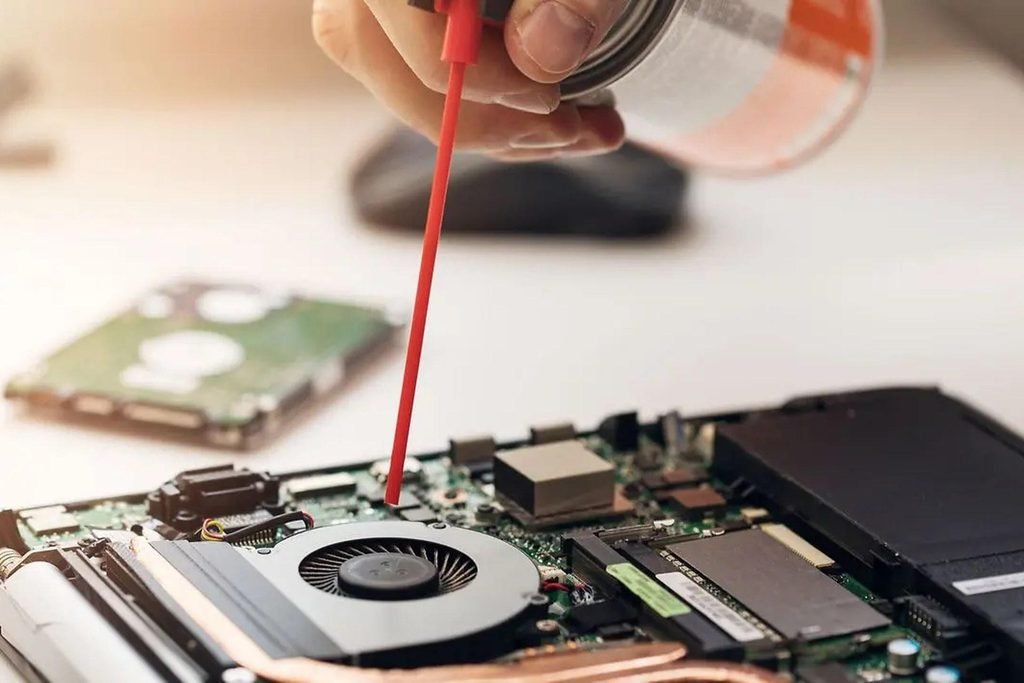
Never use a vacuum cleaner on laptop vents. Dell warns that vacuum cleaners can generate static electricity, which might damage internal parts. Never use a wet cloth inside the vents. Never blow with your mouth, since the moisture in your breath can reach the board. If the laptop still runs hot after a clean, the dust mat may sit deep inside the heatsink. Leave that to a repair shop.
Fix 5: Lift the Back and Improve Airflow
A laptop that sits flat on a desk pulls air through a narrow gap under the case. Lift the back by two or three centimeters and the gap grows. More cool air reaches the intake vents. A book under the back edge works. A laptop stand works better, since it holds the angle steady. A cooling pad adds fans under the laptop. Expect a few degrees, not a miracle.
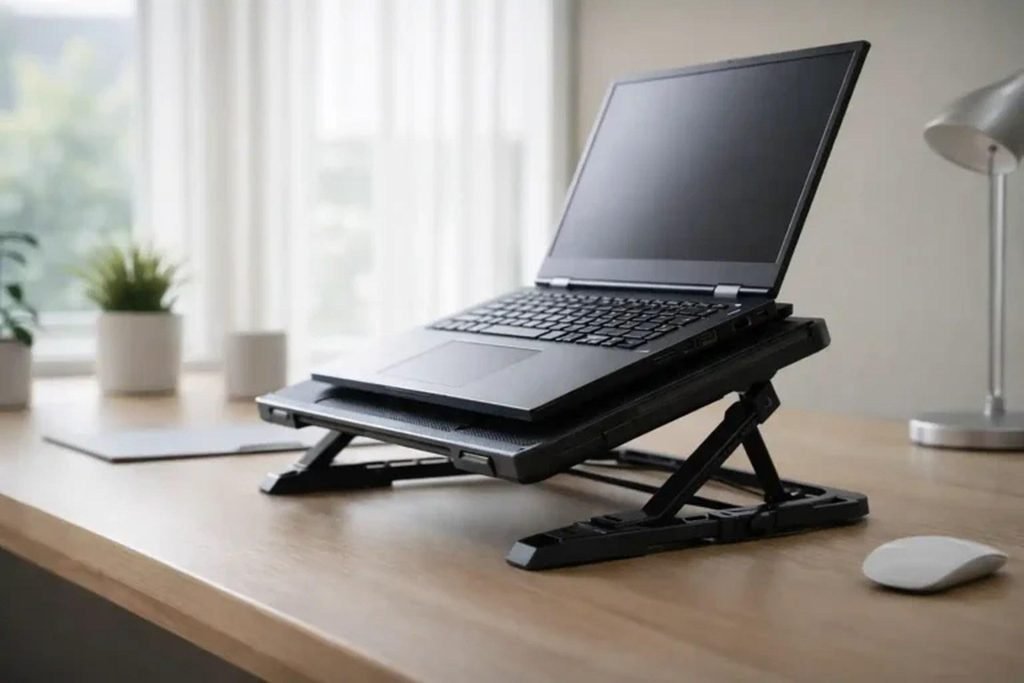
A raised stand lifts the back of the laptop for better airflow.
Fix 6: Update Drivers, BIOS, and Windows or macOS
Old drivers and old firmware can make a laptop run hot. Graphics drivers control how hard the GPU works. The BIOS controls the fan curve, which tells the fan how fast to spin at each temperature. On Windows, open Settings, then Windows Update, and install every update. Then check your laptop maker’s support site for a BIOS update and new graphics drivers. On a Mac, open System Settings, then General, then Software Update. Only update the BIOS while the laptop is plugged in and the battery is charged.
Fix 7: Check the Fan and the Temperature
Free tools such as HWMonitor, Core Temp, or HWiNFO show live CPU and GPU temperatures on Windows. On a Mac, free apps such as Macs Fan Control or iStat Menus show the same readings. A healthy laptop sits under 60°C at idle and under 85°C under load, according to UK repair guidance from RebootDoctor. If the temperature climbs past 95°C while the fan sounds quiet or makes no sound at all, the fan may be dead. Most laptop makers include a built-in fan test: Dell SupportAssist, HP PC Hardware Diagnostics, and Lenovo Vantage. Run it. Write the numbers down before and after each fix. A drop of 10°C or more after a clean tells you dust was the problem. No change after a clean points to the paste or the fan.
Fix 8: Replace the Thermal Paste (Advanced)
If the laptop is clean, the fan works, and the temperature still climbs fast, the thermal paste has likely dried out. Replacing it means opening the case, removing the heatsink, cleaning the old paste off with isopropyl alcohol, and applying a thin, even layer of fresh paste. Arctic MX-6 is the usual choice in 2026 guides. This is an advanced job. Open the case only if you are comfortable with small screws and fragile ribbon cables. Check your warranty first.
When to Take It to a Repair Shop
Some problems are not DIY fixes. Take the laptop to a repair shop if any of these apply:
- The fan makes a grinding or clicking sound, or it does not spin at all.
- The laptop shuts down without warning even after a clean.
- The battery is swollen, or the trackpad or case has lifted.
- The laptop is still under warranty and the case has never been opened.
- You have tried every step in this guide on how to fix laptop overheating and the temperature still sits above 95°C.
A swollen battery is urgent. Stop using the laptop and do not charge it. Take it to a repair shop or the maker right away.
How to Keep Your Laptop Cool
Once you know how to fix laptop overheating, keep it cool for good. Clean the vents every six to twelve months. Keep the laptop on a hard surface. Keep the software updated. Keep it out of direct sun and out of a hot car. A laptop that runs cool lasts longer. Keep the room cool when you can. A laptop in an air-conditioned room runs cooler than one in a hot room, since the fan pulls in room air. Let the laptop cool for five minutes before you close the lid and put it in a bag, since a hot laptop in a closed bag keeps cooking. If you use AI chatbots on your laptop, read our Best AI Chatbot in 2026 guide to compare them, and our Character AI No Sign Up guide before you sign in.
FAQs
Why is my laptop overheating?
Dust in the heatsink, blocked vents, dried-out thermal paste, a failing fan, a runaway app, or a hot room are the usual causes. Start with the free fixes in this guide.
How do I fix my laptop overheating?
To learn how to fix laptop overheating, work through the fixes in order. Start with a hard surface, close heavy apps, and clean the vents.
Is it safe to use a laptop that overheats?
Short bursts of heat are fine, since the processor protects itself by slowing down. It is not safe to keep using a laptop with a swollen battery or one that shuts down without warning.
What temperature is too hot for a laptop?
For most laptops, under 60°C at idle and under 85°C under load is healthy. At 95°C or higher during normal work, the CPU is throttling and you should fix the cooling.
Can dust cause a laptop to overheat?
Yes. Dust is the most common cause in laptops older than two or three years. It mats into the heatsink fins and blocks the airflow. A heavy clog can add 10–20°C.
How often should I clean my laptop fan?
Clean them every six to twelve months. Clean more often if you have pets, smoke indoors, or work in a dusty room.
Does a cooling pad really work?
A cooling pad helps a little, usually a few degrees. It helps most on laptops with bottom intake vents. A simple stand often gives you most of the benefit for free.
Why does my laptop fan run so loud?
A loud fan usually means the processor is working hard or the cooling system is struggling. Check Task Manager or Activity Monitor for an app that uses a lot of CPU.
How do I check my laptop temperature?
On Windows, use a free tool such as HWMonitor, Core Temp, or HWiNFO. On a Mac, use Macs Fan Control or iStat Menus. Compare your readings with the safe ranges in this guide.